Blog · A home network run like a small office
A nice hub, tucked away in a drawer
The family view lived inside another app. Within an hour, I decided it should be its own.
In this series · Chapter 6, The control centerShow all 49 partsHide the list
1. Where it started
- 01Why I'm running my home like a small office
- 02What a read-only audit of my network found
- 03The first changes, and the ones I said no to
- 04Reuse first, build only what's missing
- 05Fifteen decisions before the first line of code
2. Remote access and keys
- 06One way in from outside
- 07An address that keeps itself up to date
- 08Where the passwords live
- 09Keys that can do one thing
3. Monitoring
- 10Is it my network or the internet provider?
- 11A watcher outside the house, and backups I've restored
- 12The drill that found the bug
- 13Alerts that only reach my phone when something needs me
- 14I had the monitor audit itself
- 15Teaching the hub to stop crying wolf
4. The network redesign
- 16"Don't take down my internet": the routine before every change
- 17The firewall upgrade, two days late
- 18Keeping the plan when the builder wanted to drop it
- 19Two Wi-Fi drops, and knowing when to stop
- 20The router at 90 percent
- 21Moving 40 gadgets without touching each one
5. The media server
6. The control center
- 24An overnight prototype, and bars instead of dials
- 25A nice hub, tucked away in a drawer
- 26Instructions for a phone I don't own
- 27Three checks before anything goes live
- 28Buttons with a seatbelt
- 29Rewind: replaying a Wi-Fi outage
- 30"I just want a more sensible layout"
7. Security
- 31A security scoreboard that started at a D
- 32Who's knocking: a security tab in two evenings
- 33Matching every program to the public flaw lists
- 34A DNS log for the house
- 35A weekly scan that can't annoy anyone
- 36The week of the scary flaw list
8. A private AI assistant
9. How the work got done
- 38Keeping a non-developer in charge
- 39A house manual that rebuilds itself every night
- 40My AI assistant keeps blocking itself, and I'm glad
- 41What it cost, what's next, and what I'd bring to an office
10. After the rebuild
- 42The backup that filled its own disk
- 43Two messages, one second, wrong order
- 44My help tool said "fine" at 7 megabits
11. Groceries
For the first few days, the family view lived inside the home automation platform's app. It worked. But on the evening of October 12, I looked at it and said what I saw: "We built a really nice hub and then tucked it away in a drawer."
Within the hour, the decision was made. The hub would become its own app.
Why it mattered
The family view was the part of the project meant for people who aren't me. If they had to open a different app, find a menu, and tap through to reach it, they wouldn't. Good tools that are hard to reach don't get used.
The home automation platform still does its job, but now it does it behind the scenes.
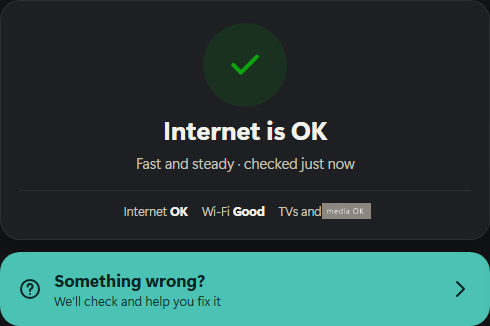
What "its own app" meant
- An icon on the home screen. Everyone in the house scans a QR code, and the hub installs like an app, with its own icon. No app store involved.
- Its own notifications. The hub sends alerts directly to phones using the standard web notification system, which is free and built into modern phones.
- A page for when it's offline. If the hub can't be reached, it says so plainly instead of showing a blank screen.
The notification messages are encrypted following the published standard for web notifications. The assistant used the example from the standard itself as one of the tests, which is a nice way to know you've built to the standard and not just to your own reading of it.
The first real test
The first try on my own Android phone failed. I signed up for notifications, and the sign-up never reached the hub. The cause was a small one: I was viewing the hub as another family member to check their view, and the notifications card hides itself in that mode. So the card I needed wasn't there, and nothing said why.
The fix replaced the hidden card with a message explaining it. At 9:58:30 PM, I signed up. At 9:58:44, the test notification arrived. I wrote back: "hub done."